The first step is to create an MCP client in inmydata.
.
Login to inmydata using your inmydata credentials
From the Settings menu
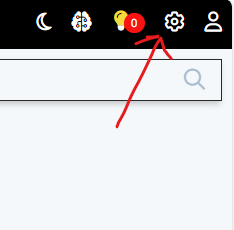
Select “Open Settings”
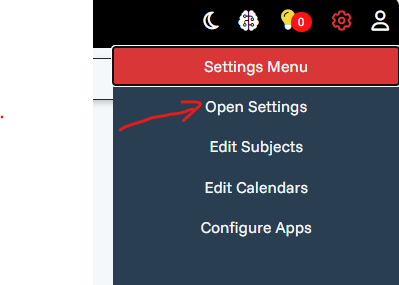
In order to securely connect to the OpenEdge MCP server from Claude or ChatGPT client credentials needs created.
In order to do that select the AI tab and click the “Add client” button.
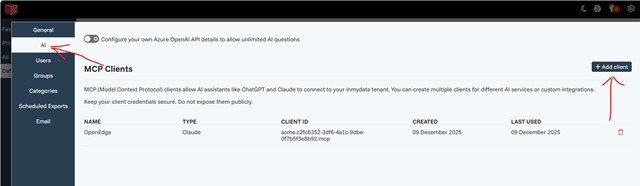
Give the client a name and select the client type (ChatGPT, Claude or Custom)
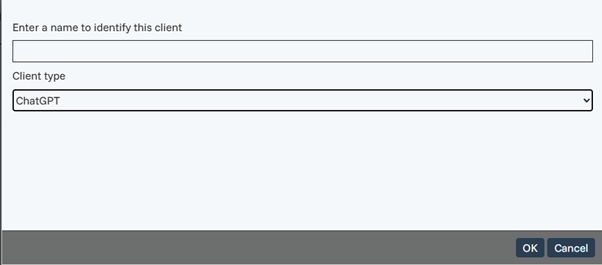
To connect anything other than ChatGPT or Claude you will need to select custom and then you will need to also enter an OAuth Callback URL.
Next you will be shown your client credentials as shown in the screen below:
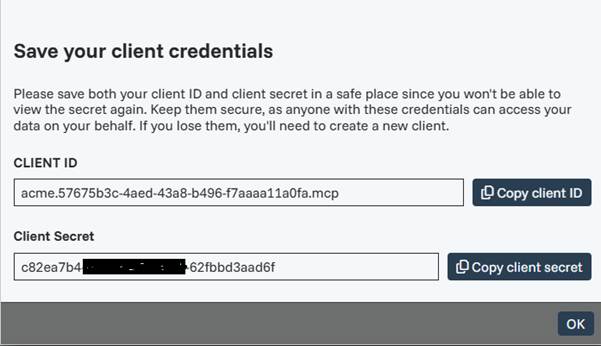
Then in your AI app you can add a connection to the MCP server.
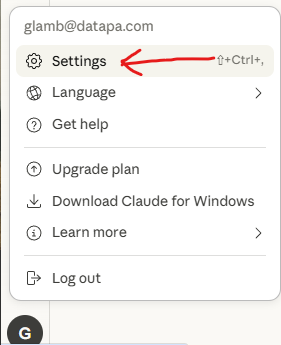
For example, in Claude you need select the Settings option available from your user button in the bottom left of the window.
Then select the Connectors option from the list
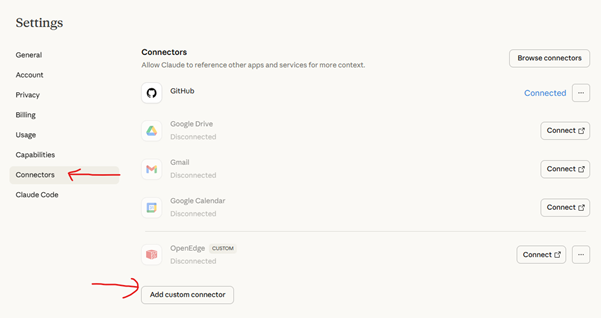
Next select the “Add custom connector” button and enter the details you copied from the MCP client you created in inmydata. The URL to use is https://oe-mcp.inmydata.com/mcp
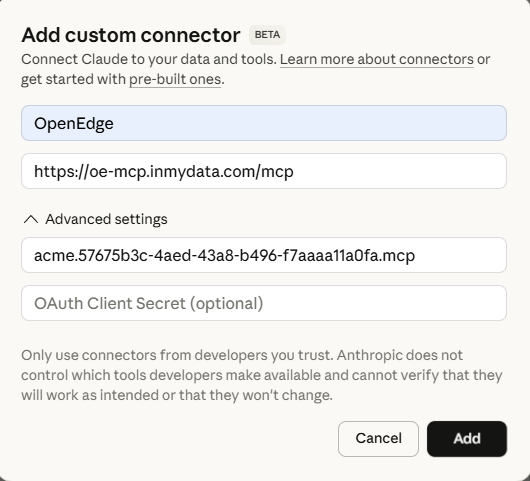
Once added click the “Connect” button

And you will be prompted to login to inmydata if you don’t already have a valid session within your browser session.
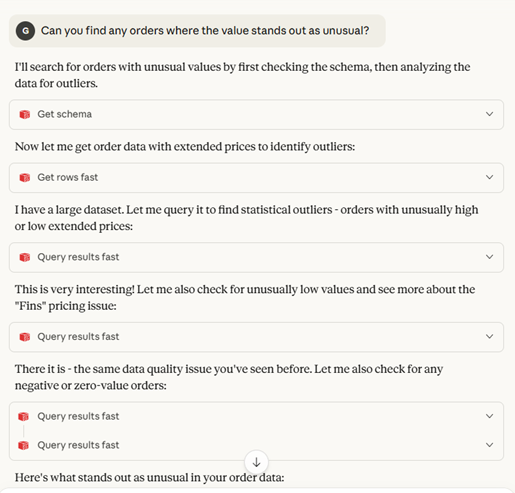
Now you are ready create a new chat and ask questions. Claude will now have tools it can use to read data from the OpenEdge database via the AppServer using ABL queries.
Then you can ask questions such as “Can you find any orders where the value stands out as unusual?”
In order to use the OpenEdge MCP with your own AppServer and database follow the steps below.
Configuring an existing AppServer to use the inmydata procedure library
Step 1: Open the AppServer Agent Configuration
- Open OpenEdge Explorer
- Select your AppServer from the Resources list
- Go to Configuration and click Edit
- Click the Agent tab
Step 2: Add the inmydata procedure library to PROPATH
Add the fully qualified path to the appropriate inmydata procedure library in the PROPATH text box.
Note: If you want to restrict public access to your OpenEdge Classic/PAS then the IP address requests will come from will be 54.78.174.130.
Step 3: Save and Restart
- Click Save
- Stop and Start the AppServer for changes to take effect
Your AppServer is now configured to work with inmydata and OpenEdge MCP.
Setting up a System in the to Connect to an AppServer
Step 1: Download and install the inmydata client app
1. Download the installer for the inmydata client app here: https://download.inmydata.ai/setup.exe
2. Double click the downloaded setup,exe file and follow the installation wizard.
Step 2: Open the newly installed Subject Editor app on your PC
Step 3: Create a New System
- Select File → New System or click the New System icon on the Ribbon
- Click Next and enter a Name and Description for the system
- Click Next to set Other Details (optional settings like allowing multiple subjects per query)
- Click Next to reach the Connection screen
Step 4: Add Connection Details
Click Add to open the Connection Details dialog
For OpenEdge Classic enter the following:
- Select the “OpenEdge AppServer” connection type
- Connection Name – a recognizable name for this connection
- Host – the name or IP address of the AppServer host machine
- Application Service – the Application Service Name configured on your AppServer
- Service (optional) – leave blank to use the default NameServer port (5162), or enter the AppServer Broker port if connecting directly
- Optional settings: Check Connect Directly to AppServer if bypassing the NameServer (more efficient for single-server setups) – enter the Broker port number in "Service". Check State free AppServer if connecting state-free.
- Click OK and wait for confirmation that the connection was successful
Or for Progress AppServer for OpenEdge (PASOE) do the following:
- Select the "Pacific AppServer” connection type
- Connection Name – a recognizable name for this connection
- AppServer URL – The URL to the instance of the PASOE you want to use
- Session Model – the Application Service Name configured on your AppServer
- Use SSL – Check this is you are using SSL on your PASOE connection (recommended)
- Click OK and wait for confirmation that the connection was successful
Step 5: Complete and Save
- Click Next, then Finish
- Click Save Changes on the Ribbon to save your new system
Your system is now configured and ready for creating links and subjects.
Setting Up Links in the Analytics Engine
Links define relationships between two tables in your connected databases (essentially a Progress ABL FOR EACH statement).
Creating a Link Manually
- Open the Analytics Engine screen with your System selected in the Tree View
- Select File → New Link or click the New Link icon on the Ribbon
- Click Next and select the System for the link
- Click Next, select the two tables to link, and choose inner-join or outer-join
- Define the join using the link condition builder, or select "Suggest join based on indexing" (you can also enable Allow manual editing to enter a custom FOR EACH phrase)
- Click Next, then Finish
- Click Save Changes on the Ribbon
Importing Links from the Database (Recommended)
Most databases have existing table relationships you can import automatically:
- Open the Analytics Engine screen
- Select Edit → Import Export Wizard
- Click Next, then select Import Links From Database
- Select your System and choose whether to overwrite duplicate links
- Optionally set a server timeout (useful for large databases with many links)
- Select the tables to import links for
- Click Next to import
Setting Up Subjects in the Analytics Engine
Subjects are the building blocks for user queries. There are three types: Freeform, Business Logic, and SDO.
Creating a Freeform Subject (Most Common)
- Open the Analytics Engine screen with your System selected
- Select File → New Subject or click the New Subject icon on the Ribbon
- Click Next, enter a Name and Description
- Click Next, select the System
- Click Next twice to create a freeform subject
- Select the tables for the subject (use Modify Link if you need a custom join for this subject only), then click Next
- Enter any filter conditions (hidden from end users), then click Next
- Select the columns to include in the subject
- Click Nexttwice, then for each column set:
- User-friendly label
- Whether it can be used as a condition (filter)
- Whether it can be used for sorting (By default, only indexed columns are allowed for conditions and sorting)
- Click Finish, then Save Changes
Adding Calculated Columns to a Subject
- Select your subject in the Tree View
- Go to the Calculated Columns tab
- Click Add
- Enter a name, select the data type, and enter the Progress ABL expression
- Click OK
- Go to the Column Attributes tab and set a label for the calculated column
- Click Save Changes
Once you have systems, links, and subjects configured you can use the OpenEdge MCP server.
You might want to delete the demo sports2000 system at this point so the MCP server doesn’t use any of the subjects in the demo sports2000 system.